 StudioTools
Connect your DAW
StudioTools follows your DAW through MIDI: the DAW thinks it's talking to a control surface, and StudioTools learns when you arm tracks, play and record. Set it up once per DAW.
Background: Recording state, MIDI & HUI.
Logic Pro
Logic Pro can talk to StudioTools in two ways — use one of them:
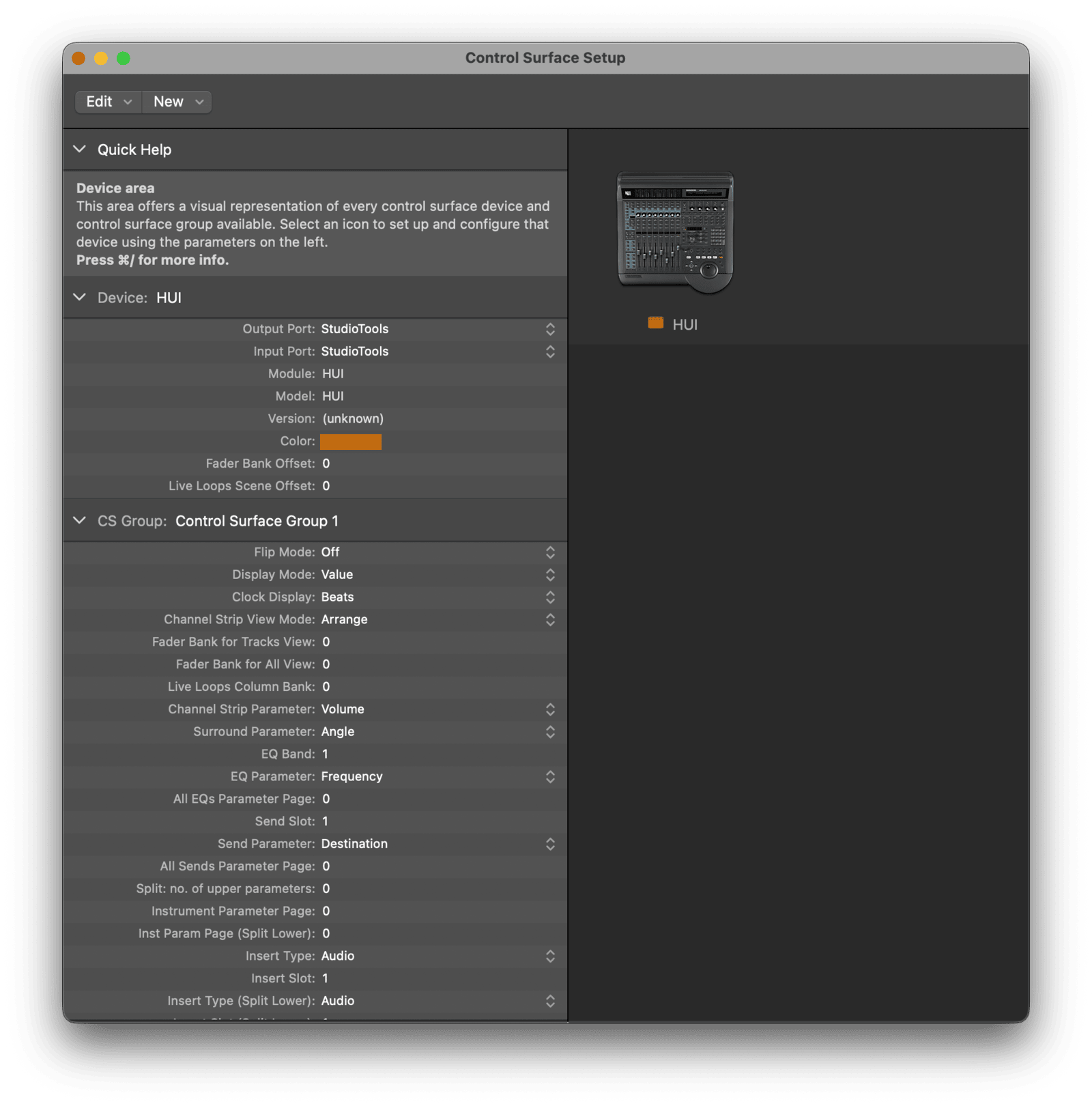
HUI control surface (recommended)
Gives StudioTools the full transport state and the timecode, which the lyrics editor and StudioTools Connect need.
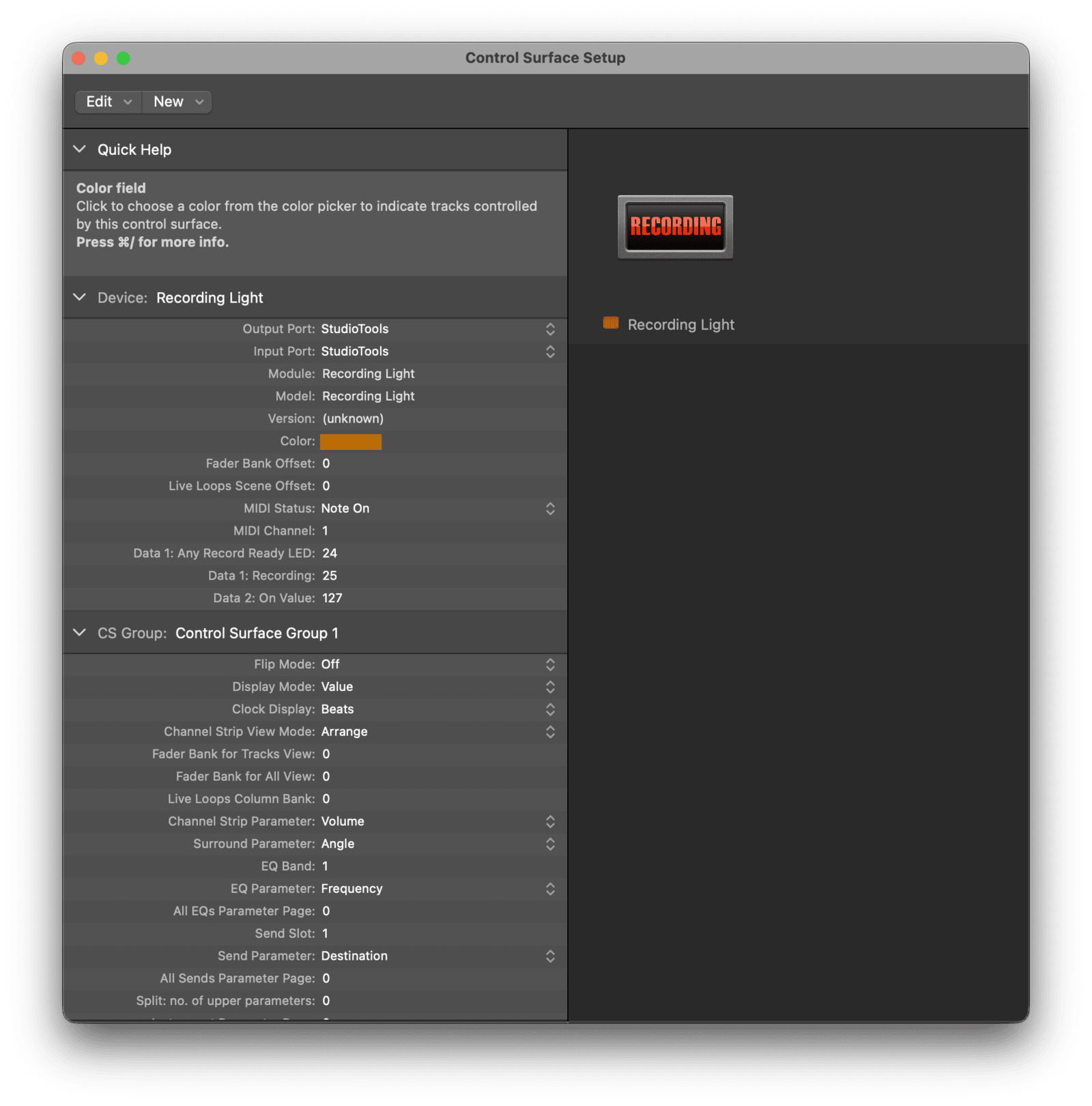
Recording Light
A simpler control surface that sends a MIDI note when recording and arming. StudioTools listens for notes 25 (recording) and 24 (armed) by default; both can be changed in the configuration.
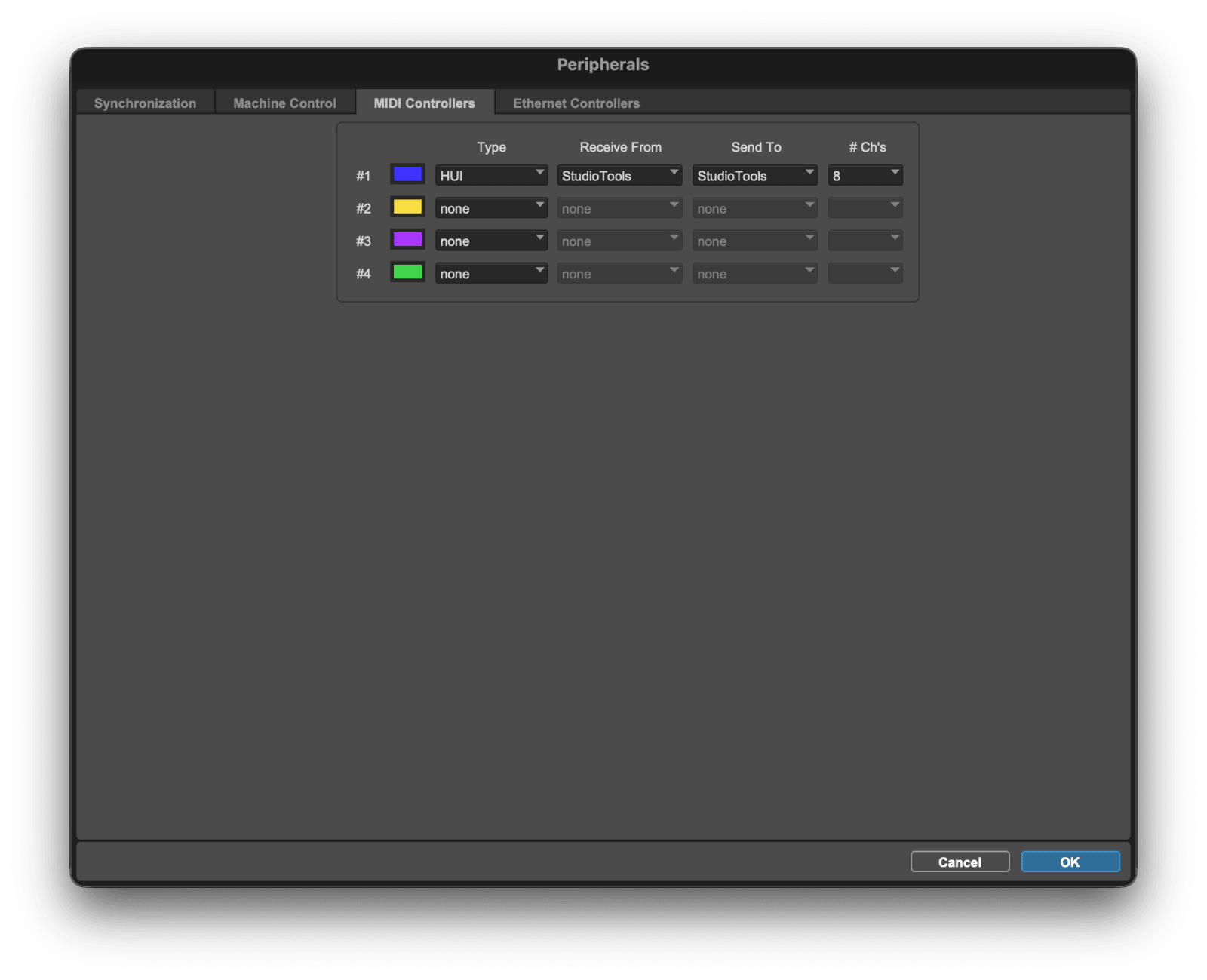
Pro Tools
HUI over MIDI
Pro Tools Scripting Library (PTSL)
With Pro Tools 2022.12 or later, StudioTools can also read session information — the session name, markers and timeline.
Check that it works
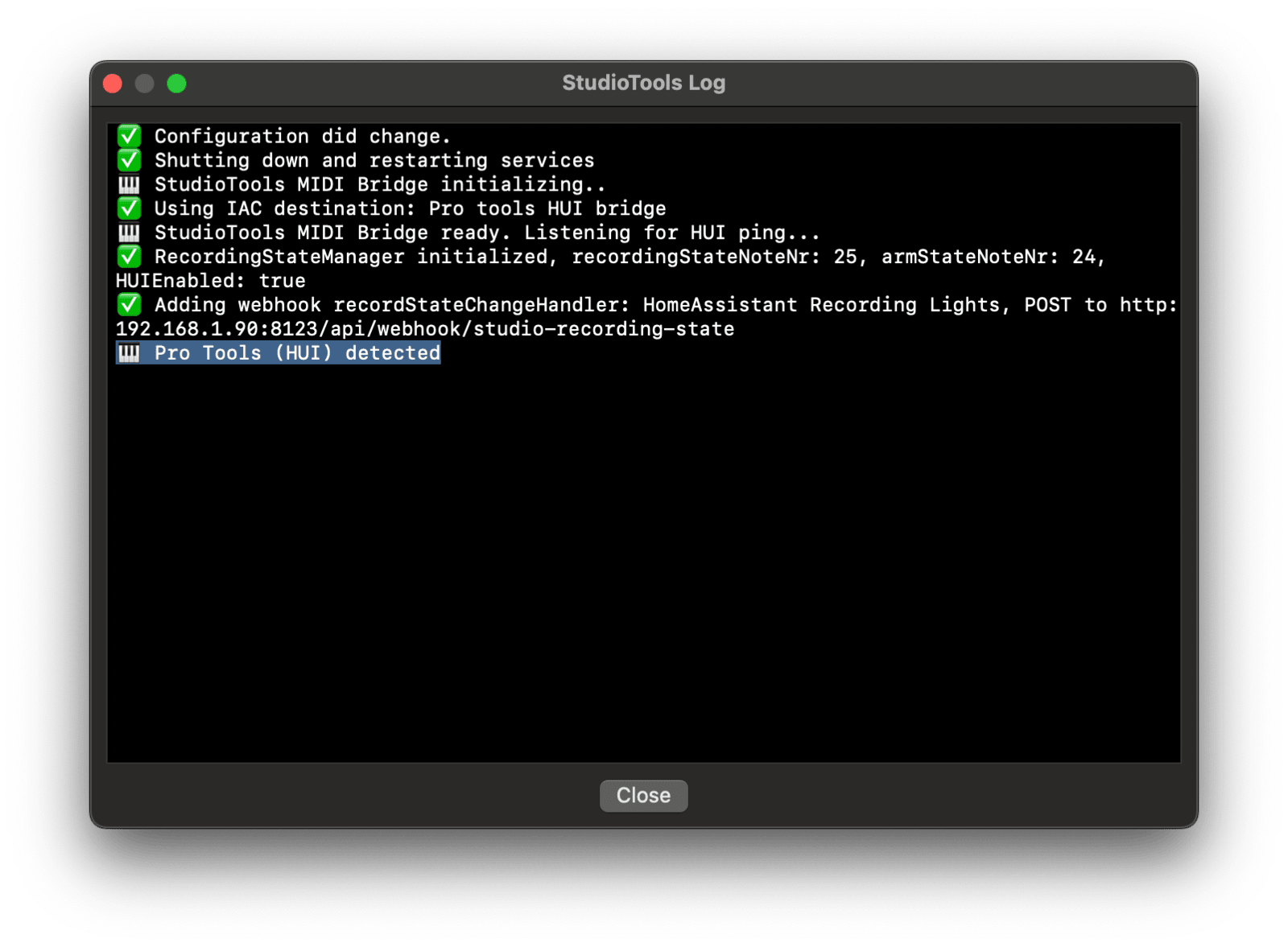
Arm a track, play and record: the menu bar icon should change with each state. The log (Show log…) shows every state change StudioTools receives.
Other DAWs and external systems
Other DAWs that support HUI may work the same way. External systems can also set the recording state through the WebHook and MQTT listeners — see Studio automation.